
Graph Authoring
Node Inspector & Entry Editing
Edit a selected or pinned node, focus nested Instructions and Conditions, and use the same commands across graph and dedicated editors.
- Audience
- All developers
- Time
- 10 minutes
- Requires
- Flow Core 5.3 or later and a graph containing an Action or another node with editable entries
- Modules
- Flow Core
On this page
Keep the execution route visible while editing node details.
Goal
Edit an Instruction or Condition without losing its parent node, changing the wrong selection, or confusing a collapsed row with a disabled operation.
When to use this
Use this workflow for Instructions, nested Conditions, FSM sections, and other expandable entries. Start with Graph Editor to create and connect nodes.
Prerequisites
Open a writable graph with two nodes and an Action containing at least two Instructions. Leave Play Mode before changing authored values unless your project’s editing policy permits those edits.
Where to find it
Select a node in the Flow Graph Editor. The built-in Flow Inspector displays that node’s details beside the canvas. If the pane is closed, use Open Flow Inspector at the edge of the graph. The persistent visibility setting is Personal > Interaction > Show Flow Inspector in Edit > Project Settings > Flow Core.
The Flow Inspector belongs to the graph editor. Open scene components such as FlowCoreProcess and Blackboard through Unity’s Inspector.
Workflow
Follow or pin a node
- Select the Action on the canvas and confirm the Flow Inspector shows its title and Instructions.
- Use Lock inspector to the current node in the pane header to pin that target.
- Select another graph node. The canvas selection changes while the pinned Inspector continues to show the original Action.
- Use Unlock inspector and follow the current graph selection to resume selection-based editing.
Check the Inspector title before editing a pinned target. Pinning keeps an editing target; it does not change the process selected as Debug Context.
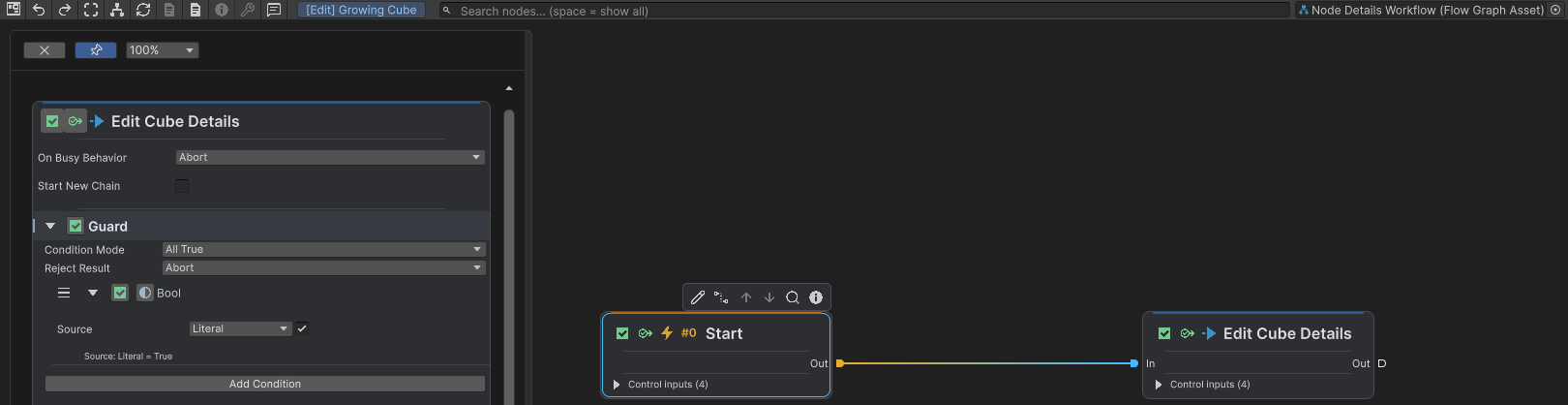
The pinned Action remains the editing target when Start is selected.
Place the pane where you need it
Set Personal > Interaction > Flow Inspector Side to Left or Right. Moving preserves the target, pin, active controls, zoom, width, and scroll position. Drag the inner edge to resize; Inspector zoom scales details independently of the canvas.
Use the pane’s close command to hide it temporarily. Selecting another node can reopen the pane; turn off Show Flow Inspector when you want to disable the pane as a personal preference.
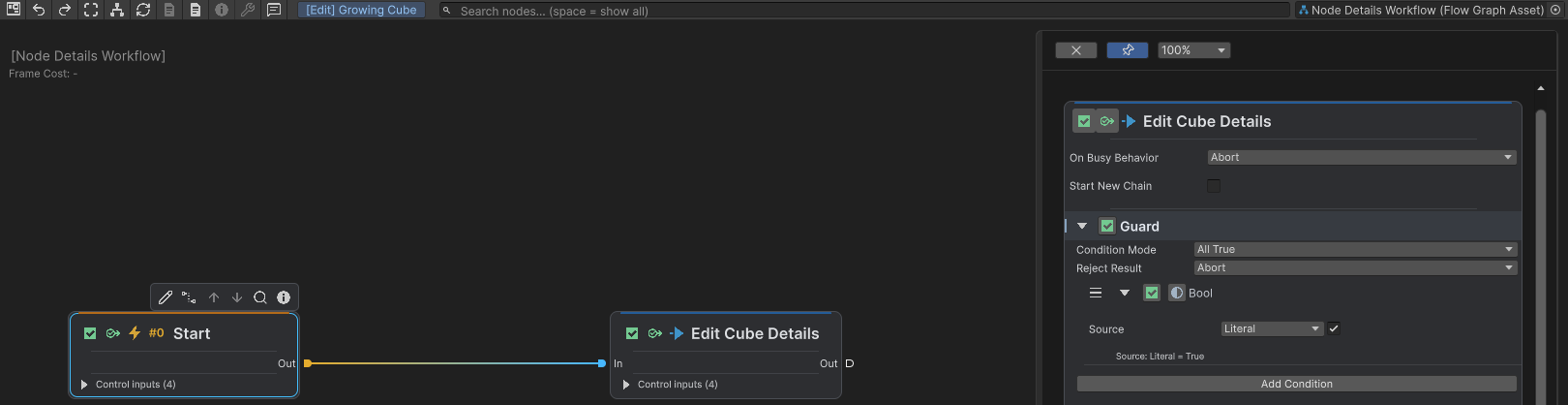
Switching sides retains the pinned target and editing position.
Focus one entry or compare several
Expand the Instruction you want to edit. Single Focus is the default: each node in each editing surface keeps one active leaf entry open, along with the ancestor entries and structural sections required to reach it. Opening a different leaf closes the previous leaf’s detail body; it does not disable that Instruction or Condition.
Choose Personal > Appearance > Entry Expansion Mode > Continuous to compare open entries. Modes remember separate session choices; the graph, Flow Inspector, and Node Editor keep independent expansion state.
Use the node’s context menu for Expand All Items when you temporarily need to inspect every supported entry. Return to Entry Expansion Mode restores the selected Single Focus or Continuous behavior. Collapse All Items closes the entries. These commands change the current editing view, not the configured default mode or execution order.
New or duplicated entries receive focus. Reordering follows the entry; deletion clears its state. Undo or reload can invalidate unconfirmed expansion state.
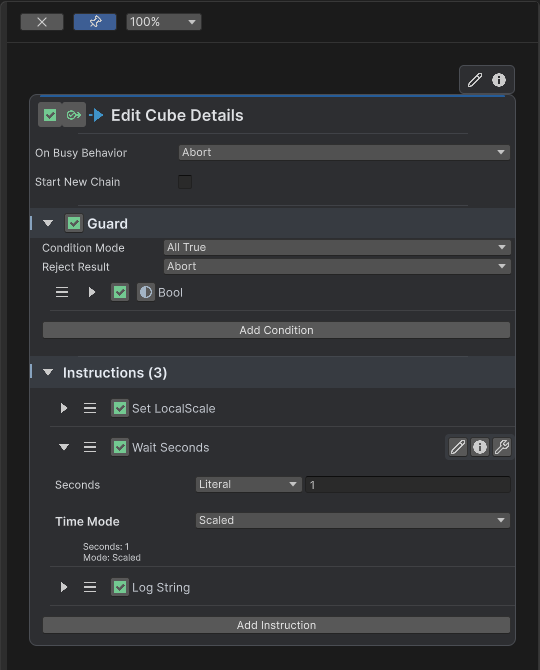
Single Focus keeps Wait Seconds open while neighboring entries remain collapsed.
Rename and use entry commands
Move the pointer over an entry header or focus its controls to reveal its command group. Use More for the full available command list, including commands that do not fit inline in a narrow pane.
- Rename opens the entry’s existing text editor. Press Enter or leave the field normally to commit; press Escape before committing to cancel the draft.
- Open Editor opens that Instruction or Condition in a dedicated editor.
- Information opens Field Information for its type.
- More also provides the applicable insertion, movement, copy/paste, removal, and Flow Knowledge commands. Availability follows the entry, clipboard, and editing permissions.
Long entry names are shortened for display. The full text remains available in the tooltip and Rename field. For Instructions and Conditions, the editable caption comes from the entry’s Comment; renaming it does not rename its registered C# type.
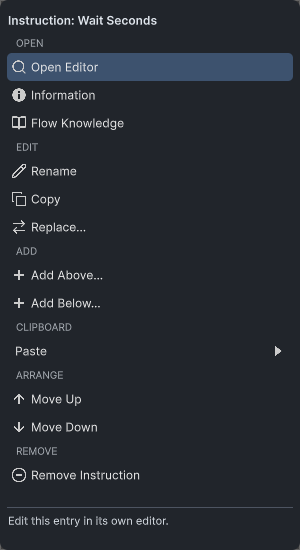
More exposes the available editing and reference commands.
Inline Action preferences control which shortcuts appear beside entries. Hiding an inline shortcut does not remove its original command from More. Read-only views keep inspection commands available while preventing authored-data changes.
Open a dedicated editor
Use Open Node Editor for complete node details, or an entry’s Open Editor for one Instruction or Condition. These windows edit the same data without duplicating nodes or runtime instances.
Node details share a hierarchy: identity, functional sections, entries, then fields. Dedicated Instruction and Condition editors retain their own expansion behavior.
What changes
Selecting, pinning, docking, zooming, and expanding control what you see. Editing a field, committing a Rename, changing Enabled or inversion, inserting, reordering, or removing an entry changes authored data and follows the existing Undo workflow. Normal delayed-field focus loss commits the edit before its detail body closes.
Expansion state belongs to the editing session. Entry Expansion Mode, Show Flow Inspector, and Flow Inspector Side are personal preferences for the current project location. They do not become shared runtime settings.
Verify the result
- Pin one node, select another, and confirm the two titles identify the intended targets.
- Switch the Inspector side and confirm the pinned target and current editing position remain available.
- Expand two different entries in Single Focus, then compare them in Continuous.
- Choose Expand All Items, then Return to Entry Expansion Mode.
- Rename an entry, undo the committed change, and confirm its behavior and typed values remain unchanged.
Common mistakes
| Symptom | Check |
|---|---|
| The Inspector does not follow selection | Unlock the pinned target and check the pane title. |
| Opening one entry closes another | Single Focus is active; choose Continuous for comparison. |
| All entries remain expanded | Return from Expand All Items to Entry Expansion Mode. |
| An inline command is missing | Open More, then check editing permissions and clipboard availability. |
| A collapsed Instruction still runs | Collapse controls presentation; Enabled controls participation. |
| A name appears shortened | Open Rename or read its tooltip; the complete Comment is retained. |