
Flow Stats
Build a Flow Stats UI
Bind HUD, profile, list, and progress UI to a selected FlowStats runtime owner.
- Audience
- Gameplay and UI developers
- Time
- 20 minutes
- Requires
- A Canvas and an initialized FlowStats component
- Modules
- Flow Stats
On this page
Goal
Bind a UI subtree to one FlowStats owner, display Health with a reusable Resource UI, and understand when list binders apply UI Display Mask filtering.
When To Use This
Use Flow Stats UI components for HUD bars, character sheets, target panels, active Effect lists, or world-space Resource bars that should react to low-frequency Stats state changes without custom polling code.
Use a manually bound widget when the screen owns a specific definition, such as the player’s Health bar. Use a list binder when a Profile should decide which Stats, Resources, or Effects appear in a particular display context.
Prerequisites
- A Canvas with a UI subtree for the Stats display.
- An initialized
FlowStatscomponent with at least one Resource, such as Health. - Text and Image references for the desired visual fields.
Where To Find It
Flow Stats UI components are under Add Component > Flow Core > Stats > UI.
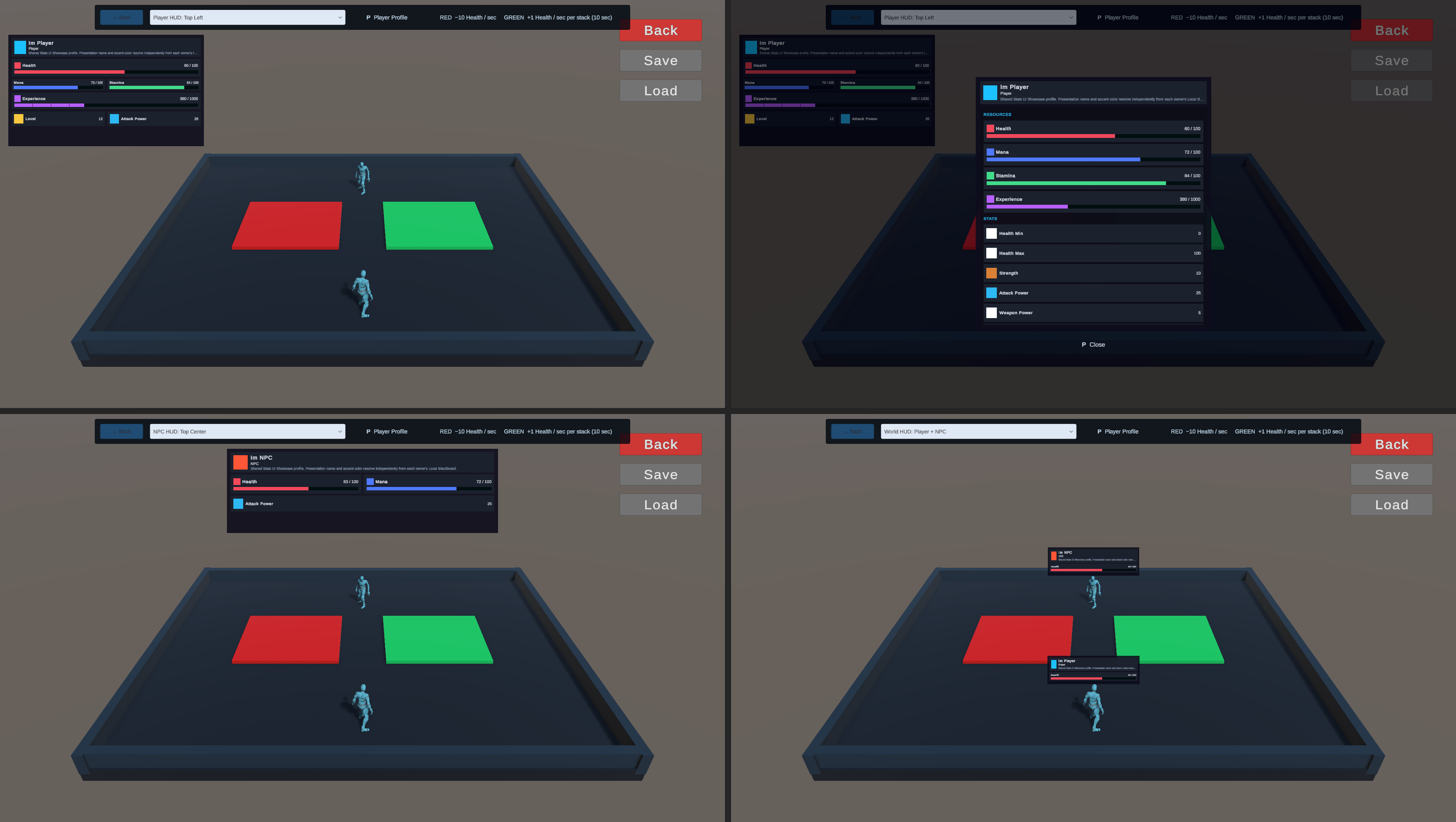
The supplied examples include Player Stats HUD, Target Boss HUD, Character Stats Page, and World Space Resource Bar layouts. Inspect them before building a larger screen.
Workflow
1. Establish the runtime target
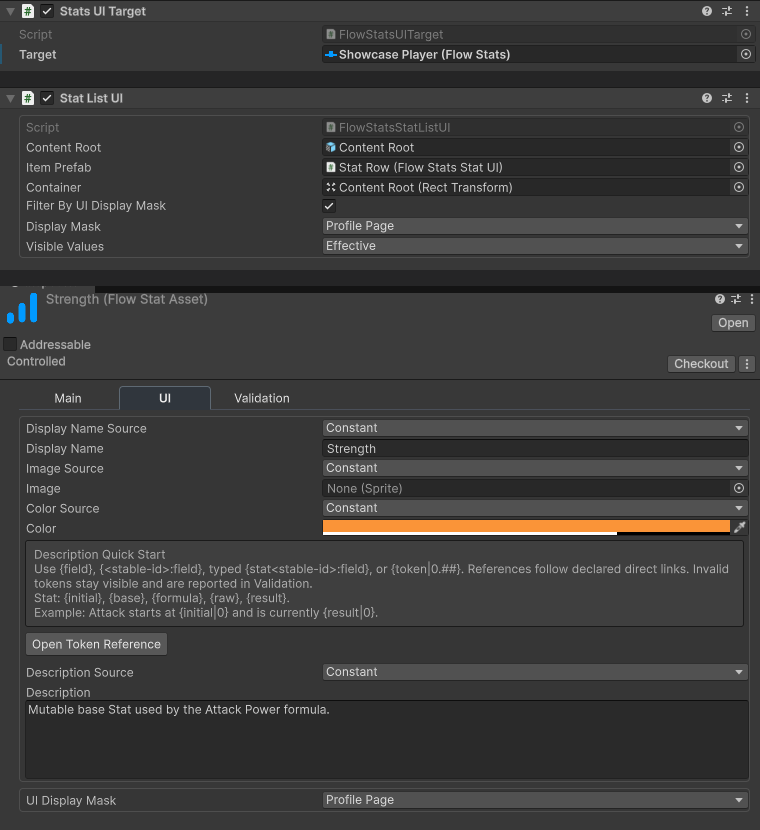
Add Stats UI Target to the root of the UI subtree. Assign the FlowStats owner that this subtree should display.
Binding components search their parents for the nearest Stats UI Target. Keep each target above the widgets it owns. Assigning a different runtime owner retargets that subtree; assigning no owner makes its bindings unavailable.
2. Bind a Health widget
Add Resource UI to a controller object below the target. Choose Open Full Configuration in its Inspector and select Health as its Resource. Use the configuration modules to assign its bindings and outputs.
Assign the value text, progress Image, and any optional delayed trail. Set Content Root to a separate descendant that contains the visible fields. Do not use the controller object itself or an object outside its subtree; the binder uses Content Root to show or hide unavailable content safely.
A manually bound Resource UI displays its selected definition even when that asset’s UI Display Mask does not include the current screen.
3. Add automatic lists where needed
Use Stat List UI, Resource List UI, or Effect List UI when the Profile should populate repeated entries. Choose Open Full Configuration on the list, open Filter, enable Filter By UI Display Mask, and set Display Mask. The list then includes a definition when the definition mask and list mask share at least one flag:
HUDincludes the definition in HUD lists.Profile Pageincludes it in character or profile lists.Allincludes both contexts.Noneexcludes it from automatic lists.
If Filter By UI Display Mask is disabled, the list ignores definition masks. Individual Profile UI, Stat UI, Resource UI, and Effect UI bindings also ignore this mask because their definition was selected explicitly.
4. Choose Resource progress behavior
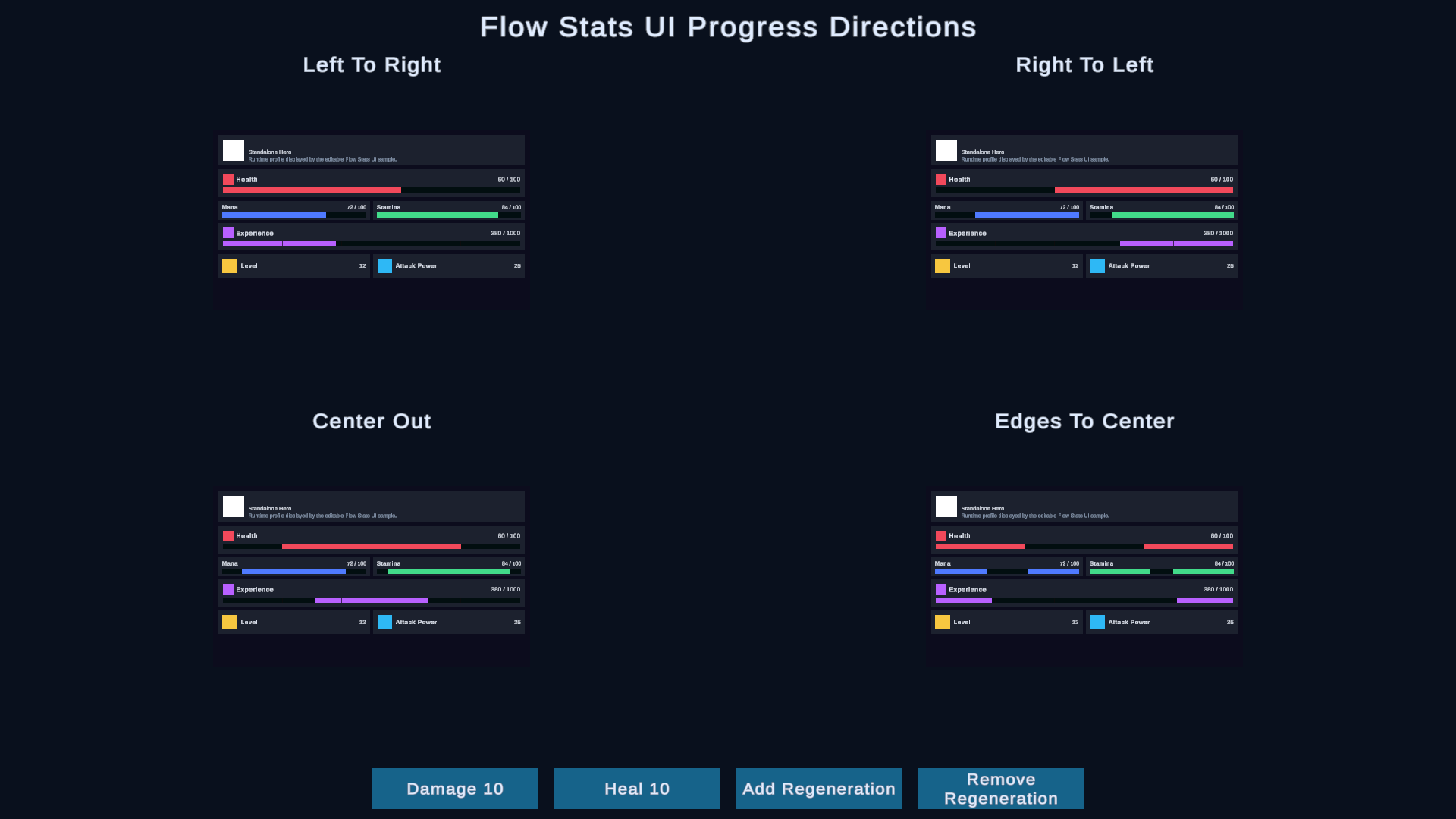
Resource UI can update value text immediately, smooth the primary progress, and optionally animate a delayed trail. For horizontal bars, choose the fill direction that matches the design: Left to Right, Right to Left, Center Out, or Edges to Center.
5. Extend the screen
Add a Stat UI for Attack Power or an Effect List UI for active Status Effects. Effect lists can filter presentation categories and group entries by definition or by runtime instance without changing Effect behavior.
What Changes
UI binders subscribe to the selected owner’s state-change notifications and refresh presentation data. They do not own gameplay values, change the Profile, or duplicate runtime state. Reassigning Stats UI Target changes which owner the subtree observes. Enabling a list’s display-mask filter changes only which matching definitions that list presents.
Verify the Result
Common Mistakes
| Symptom | Check |
|---|---|
| Every binding is unavailable | Assign an initialized owner to the nearest parent Stats UI Target. |
| One widget cannot find its target | Move it below the intended target and check for a nearer target in its parent chain. |
| Content does not hide correctly | Use a separate descendant as Content Root, not the controller object or an external object. |
| A definition is missing from a list | If filtering is enabled, make the definition and list Display Masks overlap. |
| A list includes every definition | Enable Filter By UI Display Mask, then select the list’s intended Display Mask. |
| A manually bound widget ignores the mask | This is expected; display masks filter enabled automatic lists, not explicit bindings. |
| A bar fills in the wrong direction | Check the Resource UI horizontal progress direction and Image references. |