
Execution & Queries
GUID Tag Combinations
Discover registered GameObjects with explicit OR and AND combinations of GameObjectGuid tags.
- Audience
- Working with Flow Core
- Time
- 15 minutes
- Requires
- A writable Unity scene with a FlowCoreProcess and Local Blackboard
- Modules
- Flow Core
On this page
Use Find GameObjectGuid By Tags when a graph needs to discover a group of registered objects by role instead of holding exact references. This tutorial runs the same [Enemy, Ranged] query twice so the difference between Or and And is visible in both the result lists and counts.
What you will query
Create three objects with overlapping GameObjectGuid tags:
| GameObject | Tags |
|---|---|
Enemy Archer | Enemy, Ranged |
Enemy Brute | Enemy, Melee |
Defense Turret | Defense, Ranged |
For the query [Enemy, Ranged], Or matches all three objects because each has at least one requested tag. And matches only Enemy Archer because it has both requested tags.
Add the tag whitelist
- Open
Edit > Project Settings > Flow Core. - Select Personal > Names & Whitelists, then open
GameObjectGuid Tags. - Add
Enemy,Defense,Ranged, andMelee.
The whitelist is a personal suggestion list for this project location. It helps you reuse consistent literal names in supported tag pickers. It is not a runtime validator: a tag does not have to be listed there to exist or match at runtime. Tags assigned to a GameObject or query remain serialized project data and synchronize normally. See Personal & Project Settings for the storage boundary.
Tag the three GameObjects
- Create three GameObjects named
Enemy Archer,Enemy Brute, andDefense Turret. - Add
GameObjectGuidto each object. - Choose Open Full Configuration, select
Tags, and assign the two tags shown in the table above.
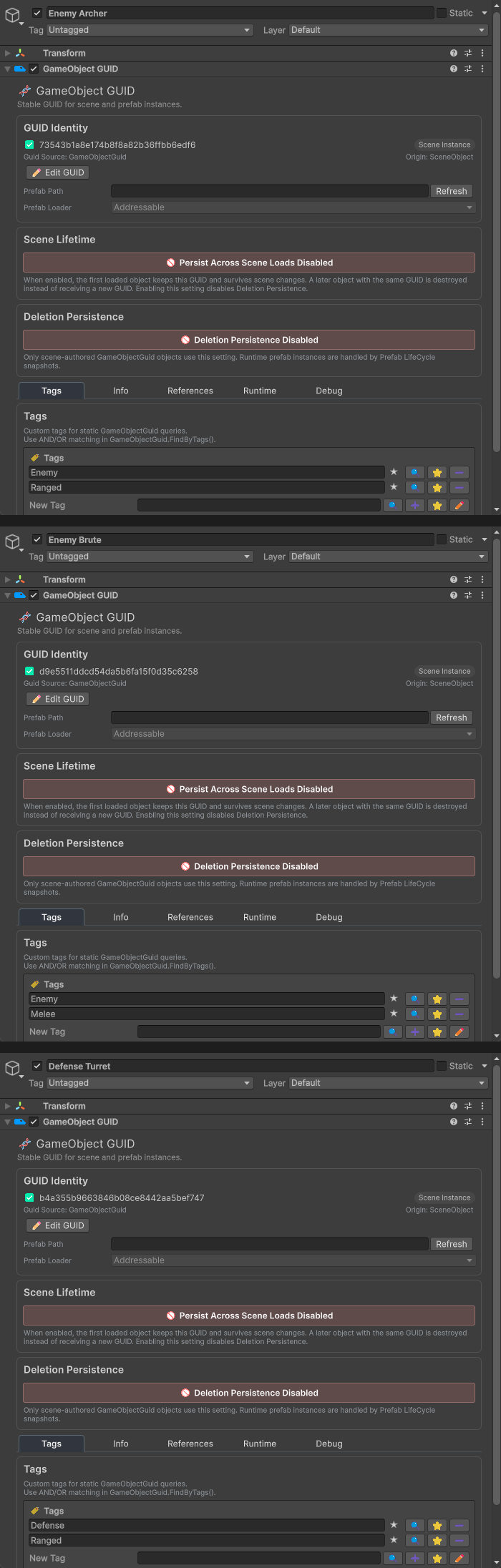
Each crop shows the Tags module for its named target.
Create the output keys
On the Local Blackboard used by your FlowCoreProcess, create these keys:
| Type | Keys |
|---|---|
GameObject List | OrResults, AndResults |
Int | OrCount, AndCount |
Keep this Blackboard at Local index 0. The two list keys make the matching members inspectable; the two integer keys make the expected counts easy to verify or branch on later.
Build the two combination queries
- Create a Flow Graph, assign it to the
FlowCoreProcess, and add a UnityStartTrigger. - Connect the Trigger to an Action node.
- Add
Find GameObjectGuid By TagsfromGameObject/Guid/Tags. - Set
Tagsto the literal listEnemy,Ranged. - Set
Match ModetoOr. - Write
Resultsto Local Blackboard index0, keyOrResults. - Write
Countto Local Blackboard index0, keyOrCount. - Add a second
Find GameObjectGuid By Tagsinstruction to the same Action. - Use the same literal tags, set
Match ModetoAnd, and write toAndResultsandAndCount.
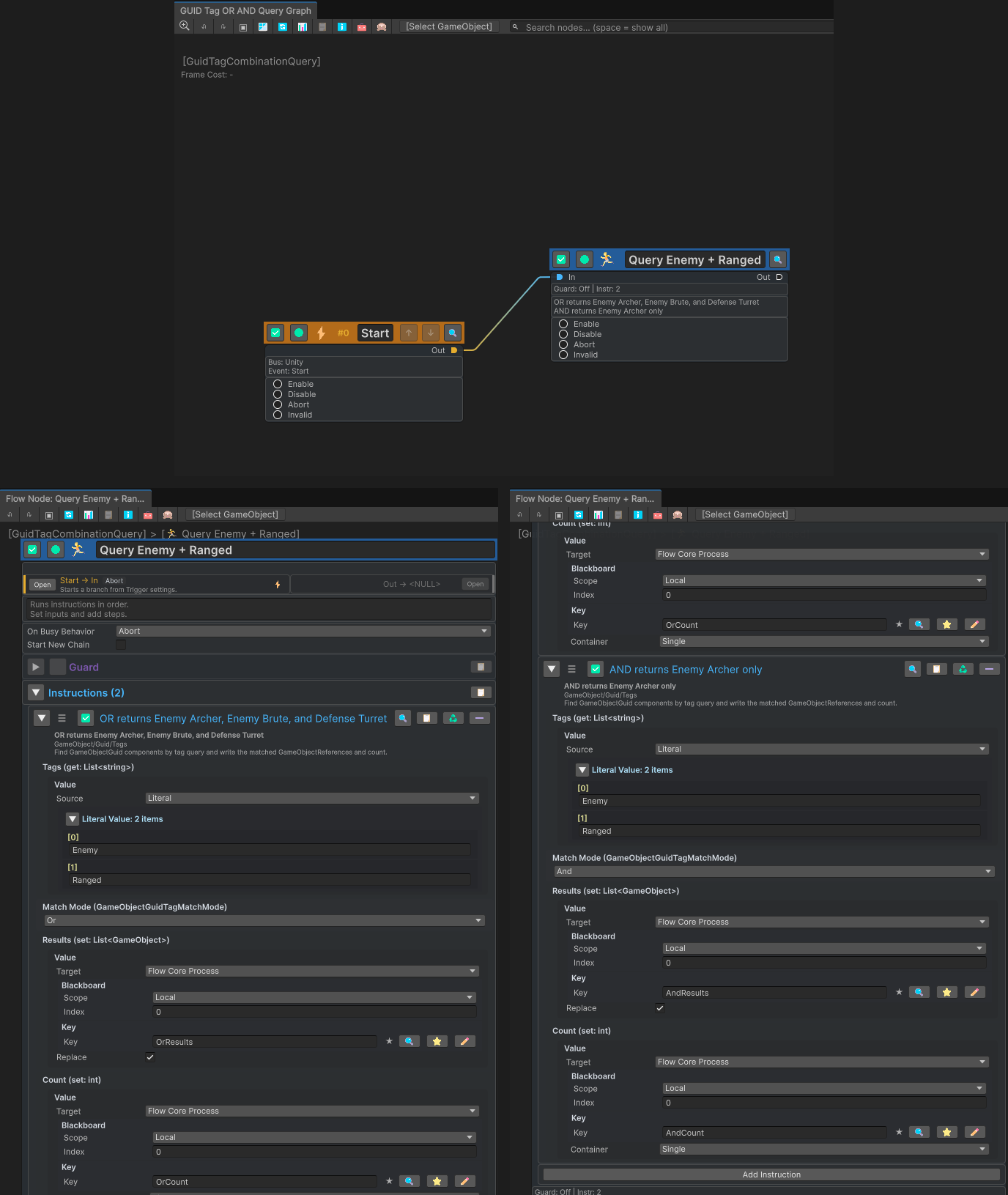
The graph is shown above two native entry-detail crops: Or on the left, And on the right.
The instructions run in order, but neither query depends on the other’s output. Their separate keys keep the comparison explicit.
Verify in Play Mode
- Save the graph and scene.
- Enter Play Mode after all three tagged objects are active and registered.
- On the Local Blackboard, choose Open Full Configuration, then Variables > Edit.
- Select
OrResults, thenAndResults, and expand each list. Switch to Summary to compare the counts.
The expected result is:
| Query | Matching set | Count |
|---|---|---|
Or | Enemy Archer, Enemy Brute, and Defense Turret | 3 |
And | Enemy Archer | 1 |
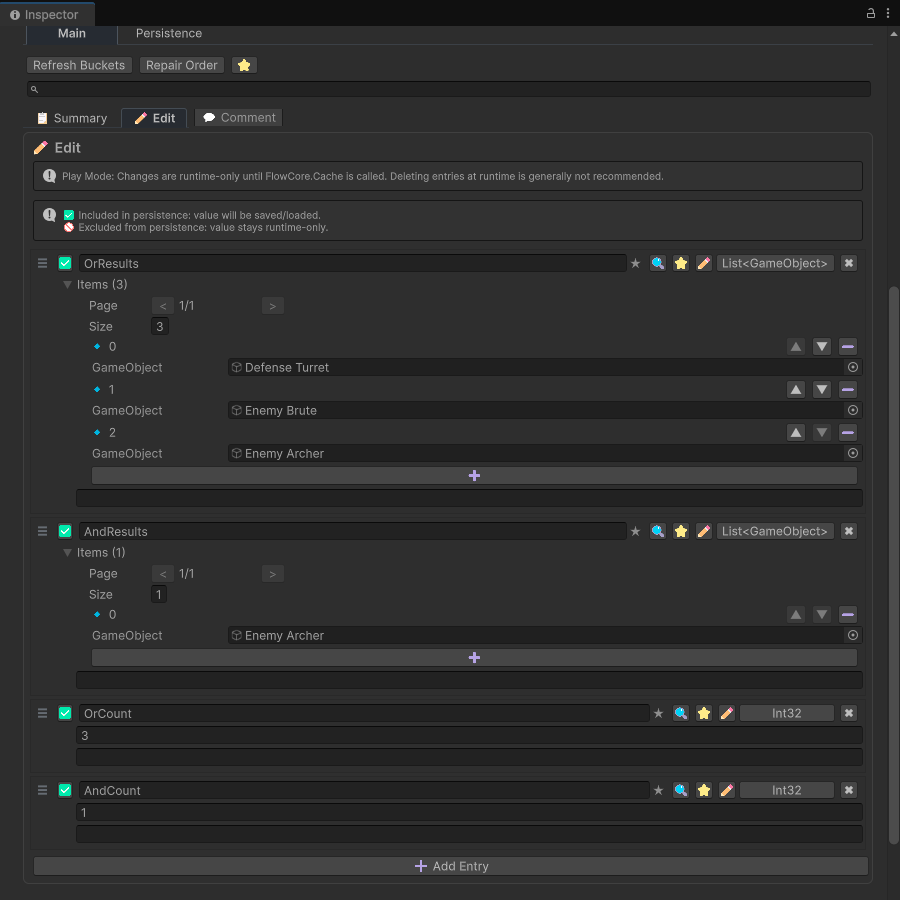
Top to bottom: OrResults selected in Edit, AndResults selected in Edit, and the Summary counts from the same running example.
Know the query boundaries
- Tags are trimmed at their ends, but matching remains case-sensitive.
Enemyandenemyare different tags. - Empty or whitespace-only query entries are ignored. If no usable query tags remain, every registered
GameObjectGuidmatches. - The personal tag whitelist improves authoring consistency but does not reject runtime tags outside the list.
- Runtime discovery searches registered
GameObjectGuidcomponents. If an expected object is missing, confirm that it is active and registered before the Action runs. - Result order is an implementation detail. Branch on membership or count, not on list position.
- If the graph already knows one exact object, prefer a direct reference instead of searching the registry.
When you already have a target
Use Has GameObjectGuid Tags when a target GameObject is already resolved and the graph only needs a bool for an Or or And membership check. Use Find GameObjectGuid By Tags when the graph must discover all matching objects.
The single-tag Has GameObjectGuid Tag and Find GameObjectGuid By Tag instructions are shorter forms for one tag. See the GameObjectGuid tag instruction Tech Docs for the complete instruction reference.
Common Mistakes
| Symptom | Check |
|---|---|
Both queries return 0 | Confirm the objects are active, registered, and own GameObjectGuid. |
And returns too many objects | Confirm both instructions use [Enemy, Ranged] and the second mode is And. |
| A visually similar tag misses | Compare capitalization and remove unintended internal characters. |
| Results cannot be written | Confirm the Local index, key names, and Blackboard value types. |
| Downstream logic changes run to run | Do not depend on the result list’s order. |
What You Built
You created an overlapping tag model, ran the same multi-tag query with both match modes, and stored inspectable GameObject List and Int outputs. The result demonstrates the main strength of the GUID Tag system: composing roles such as affiliation and combat range without hard-coding individual scene references.