
Flow Interaction
Building an Interactable
Create a Target that can be focused and used by a Flow Interaction Owner.
- Audience
- Gameplay designers and developers
- Time
- 15 minutes
- Requires
- A Flow Player or GameObject with Flow Interaction Owner
- Modules
- Flow Interaction
On this page
Create a simple object that displays focus feedback and produces a visible result when the current Owner requests interaction. This workflow verifies scanning, selection, Focus, Blur, and Interact before connecting inventory or quest logic.
What you will build
A player approaches a console. The console becomes the current Target, its prompt appears, and an interaction request runs target-side graph logic.
Create the Target
- Use
GameObject > Flow Core > Flow Interaction Target. - Name the object
Test Console. - Position it within reach of the actor.
- Choose
Open Full Configuration > Mainand keepCan Interactenabled. - Set a Target radius appropriate for the object’s size.
- Place the local interaction point where the player expects to use the console.
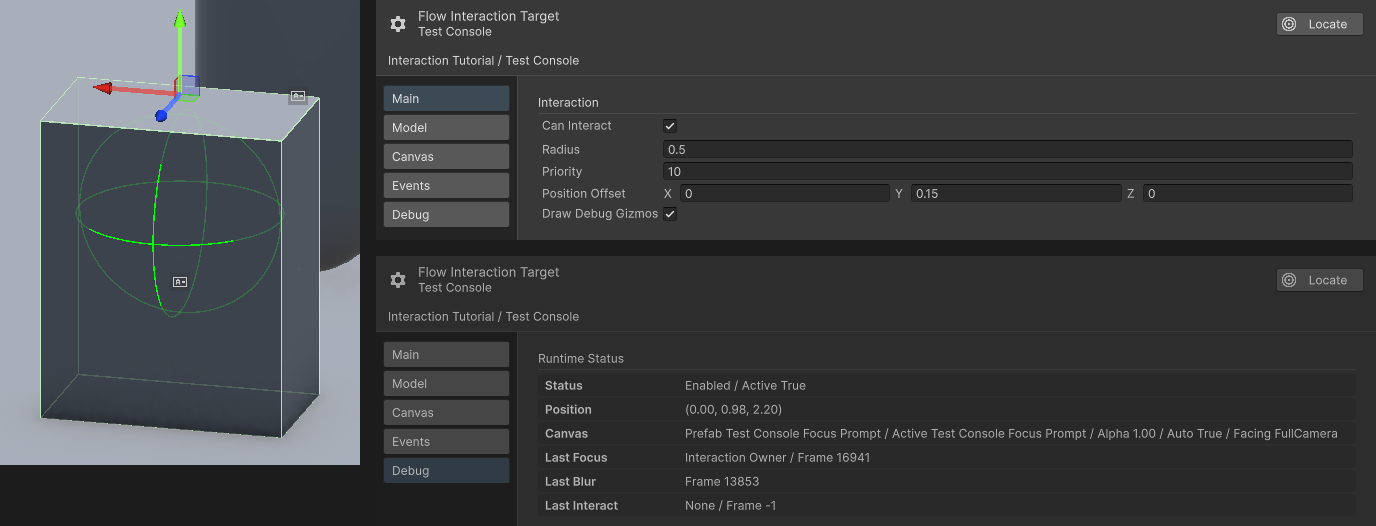
The green radius gizmo is centered on Test Console’s interaction point. Main shows Position Offset (0, 0.15, 0), Radius 0.5, and Priority 10. The separate Play Mode Debug panel reports world Position (0.00, 0.98, 2.20).
Confirm the Owner
Use a Flow Player, or add and configure Flow Interaction Owner on the actor. For the first test:
- Choose
Open Full Configuration > Mainon the Owner and set a radius that overlaps the console’s Target radius. - Use Nearest selection for a forgiving test, or Forward when facing should matter.
- Keep Owner interaction enabled.
- Enter Play Mode and open
Debugto inspect candidate count or current target while approaching.
If no candidate appears, enlarge the debug ranges temporarily and verify both components are enabled before changing graph logic.
Add focus feedback
In the Target’s Open Full Configuration > Canvas page, assign a world-space Canvas prefab containing a Canvas and CanvasGroup to Canvas Prefab. The Target spawns its runtime prompt from that prefab. Either enable Auto Canvas Visibility or use target-side Focus and Blur routes to show and hide it.
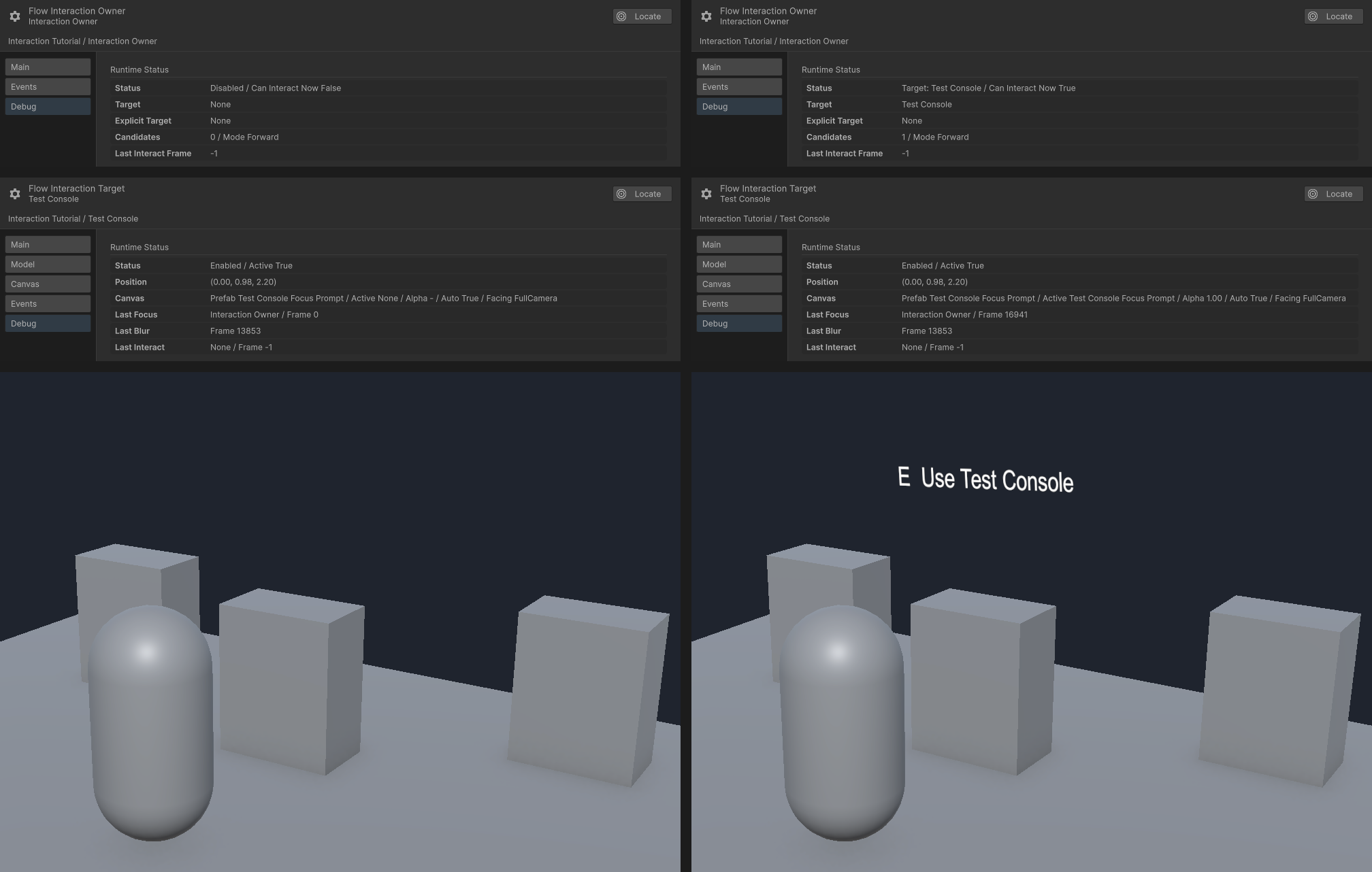
Left: Owner interaction is disabled (Can Interact is off), Target is None, and the runtime Canvas is absent; Alpha - means no Canvas instance. Right: Test Console is focused and its prompt has Alpha 1.00. Each column combines the corresponding Debug and Game observations before any Interact request.
Focus feedback should explain that the object is selected. It should not add the item, open the menu, or apply gameplay consequences yet.
Request interaction
From the actor’s input or test graph:
- Add a Trigger or Entry you can activate.
- Add an Action with
Flow Interaction Owner InteractfromInteraction/Owner. - Resolve the intended Owner.
- On the Target’s Interact event route, add a visible diagnostic such as a log or simple object change.
- Enter Play Mode, focus the console, and request interaction.
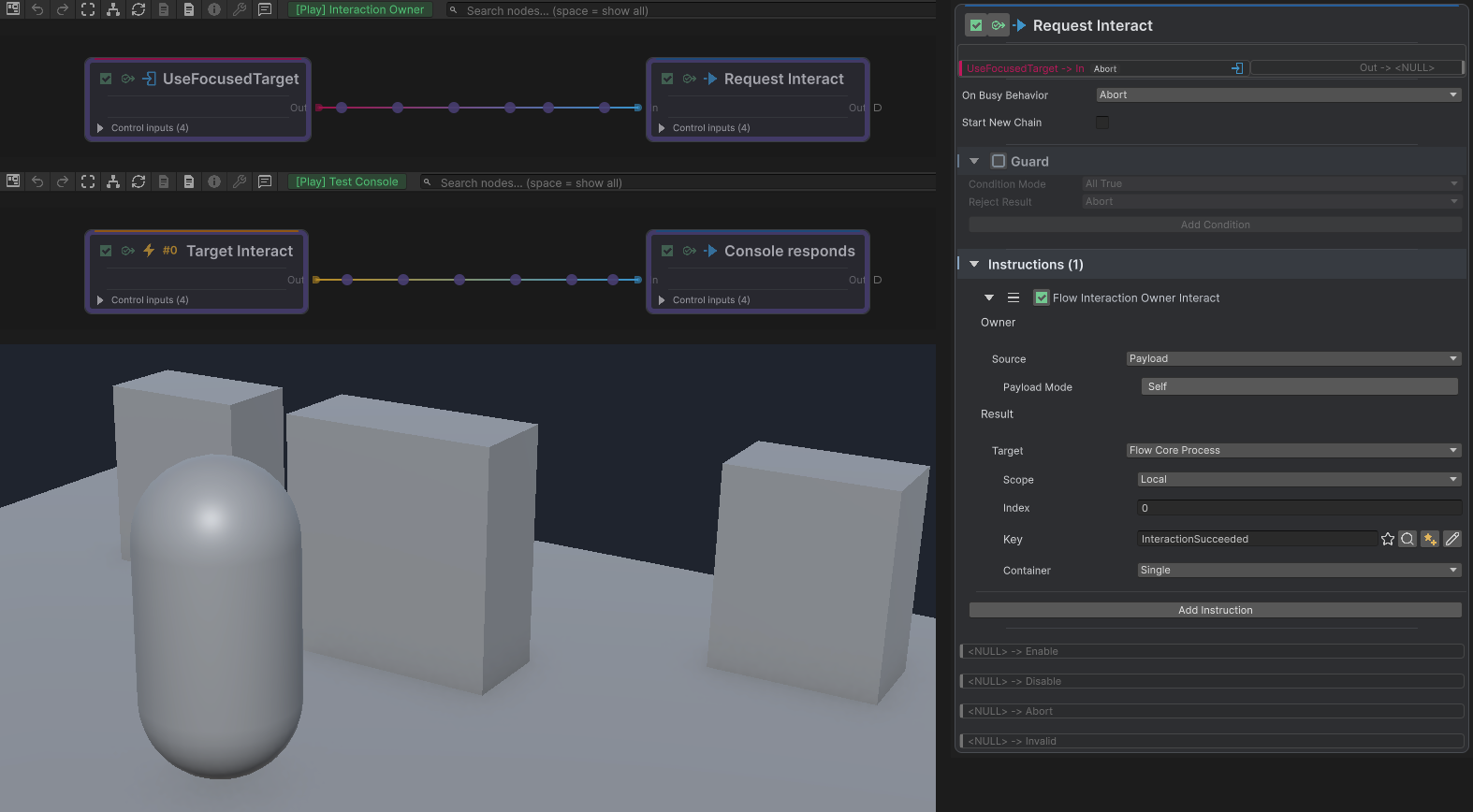
Owner and Test Console use separate Debug Contexts, captured during separate accepted requests. The Edit Mode node resolves Owner from Payload with Self mode and binds its Bool result to Local Blackboard 0, InteractionSucceeded. The later Game view shows the Target route’s scale change.
Verify the result
After this works, replace the diagnostic result with the real responsibility: open a crafting panel, start dialogue, play a pickup Gesture, modify inventory, or invoke another supported system.
Common Mistakes
| Symptom | Check |
|---|---|
| The Owner has no candidates | Confirm Owner and Target radii overlap and both components can interact. |
| The wrong object wins | Compare selection mode, distance, facing, and Target priority. |
| Focus appears but Interact does nothing | Confirm an interaction request reaches the current Owner and the Target event route is configured. |
| Gameplay runs during Focus | Move the gameplay consequence to Interact; keep Focus for selection feedback. |
| A scripted target is ignored | Use Explicit mode and set the Owner target through the supported Instruction. |
What You Built
You separated actor intent from object response, made candidate selection observable, and verified the full focus-to-interact lifecycle before adding project-specific consequences.