
Graph Authoring
Personal & Project Settings
Keep editor preferences personal while sharing build and runtime configuration with your team.
- Audience
- All developers
- Time
- 8 minutes
- Requires
- Flow Core 5.3 or later in a Unity project
- Modules
- Flow Core
On this page
- Where to find it
- Adjust your authoring preferences
- Choose your editing layout
- Maintain personal name suggestions
- Change shared runtime configuration
- Configure registration preparation
- Control persistent GUID collision warnings in Play Mode
- Upgrade an existing project
- Verify the result
- Common mistakes
- Related
Keep Editor choices personal and build/runtime rules shared. Flow Core 6.0 applies this separation to registration prewarm.
Where to find it
Open Edit > Project Settings > Flow Core. Choose the group that owns the change:
| Group | Use it for | Where the choice belongs |
|---|---|---|
| Personal | Editor appearance, interaction, search, name suggestions, and editor diagnostics | Your Unity EditorPrefs for this project location |
| Project Shared | Build and runtime rules, character defaults, and runtime diagnostics | The existing FlowCoreSettings asset synchronized with the project |
| Tools | Generator windows and registry maintenance commands | Each tool keeps its existing configuration and workflow |
Runtime rules belong to Project Shared, including Context Shortcuts: graphs can read their camera, mouse, and time values at runtime.
Adjust your authoring preferences
- Select Personal.
- Use Appearance to choose node presentation, summaries, comments, inline actions, and Entry Expansion Mode.
- Use Interaction for window behavior, Show Flow Inspector, Flow Inspector Side, zoom, and the Play Mode editing lock.
- Use Search for result grouping and keyword expansions.
- Reopen or return to the relevant editor and confirm the presentation suits your workflow.
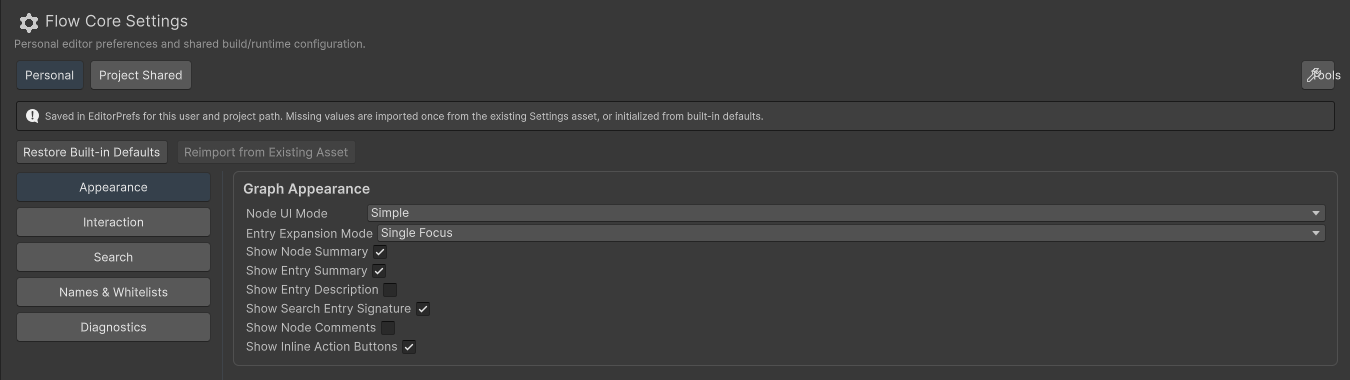
Personal groups editor preferences by task. These controls save for the current user and project location.
Personal changes support Undo/Redo, survive restarts at the same location, and leave the shared asset unchanged.
The Play Mode editing lock prevents graph asset edits without pausing execution.
Choose your editing layout
Entry Expansion Mode defaults to Single Focus; choose Continuous to compare entries. Expand All Items is a temporary override. Show Flow Inspector controls the built-in pane, and Flow Inspector Side selects Left or Right. Inline Action preferences control shortcuts; More retains applicable commands.
Pinning and expanded entries are session choices. Follow Node Inspector & Entry Editing for these workflows.
Maintain personal name suggestions
Open Personal > Names & Whitelists, then open the manager for the names you use: Event Channels, Enter titles, Blackboard keys, GUID tags, persistence groups, Camera Channels and Shot Names, or other supported module names.
Add a suggestion and select it from the picker. Suggestions are personal; selected values synchronize with their graph or component.
Suggestions do not create runtime objects or keys, or reject unlisted values. Empty lists stay empty until you add entries, restore defaults, or reimport preferences.
Change shared runtime configuration
- Select Project Shared.
- Use Runtime for save/load behavior, registry scanning, prefab lifecycle, pooling, and Context Shortcuts.
- Use Character for shared character animation defaults.
- Use Diagnostics for runtime tracing and warnings.
- Review the settings asset change through your team’s version-control workflow and verify the affected runtime behavior.
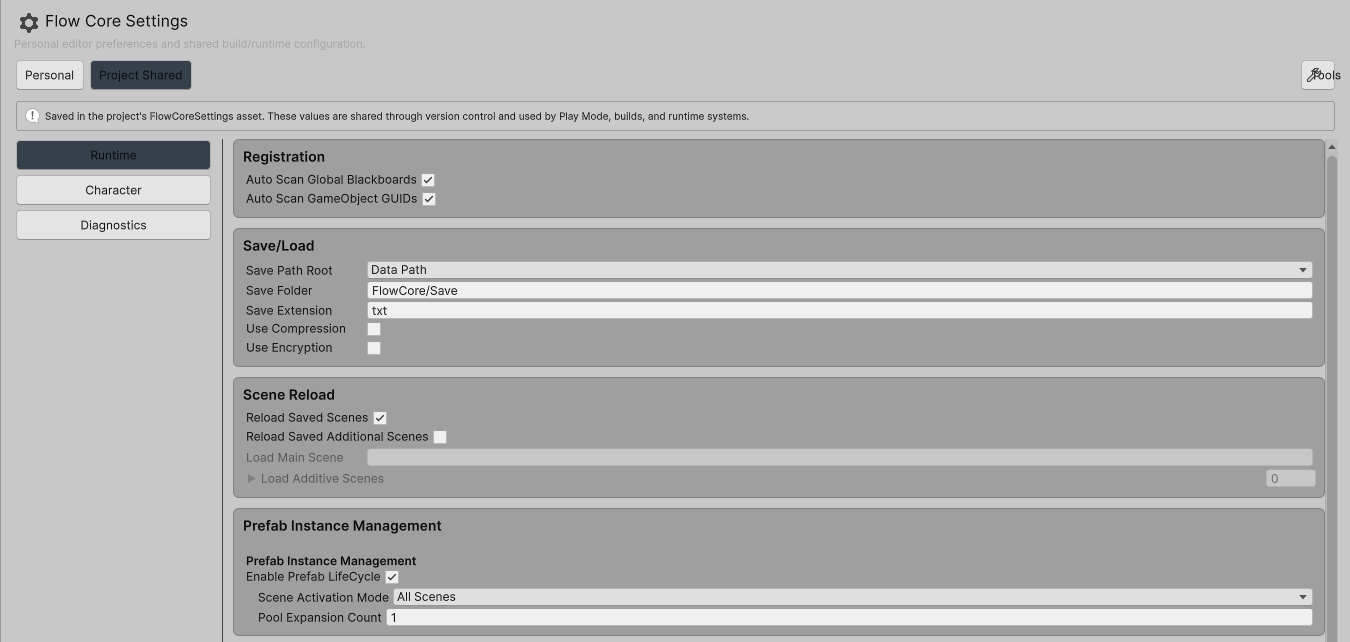
Project Shared keeps build and runtime rules in the settings asset. This Runtime view uses Unity’s light skin for illustration.
The editor process profiler is in Personal > Diagnostics, including its History Frames preference. Invoking-chain debugging and Blackboard comparison warnings remain in Project Shared > Diagnostics. Choose the relevant scope before changing diagnostics during a team investigation.
Configure registration preparation
Use Personal > Diagnostics > Registration for Editor preparation and Project Shared > Runtime > Registration for Player builds. Both default to All Available. Choose Specified for selected scope plus dependencies, or On Demand for actual use or requests.
Default soft budgets are 1.5 ms/update in Editor and 0.25 ms/frame in Player. First use can exceed the budget; changing policy retains caches. Prewarm prepares registration support rather than gameplay instances. Follow Automatic Registration & Prewarm for priorities, memory tradeoffs, and Generator diagnostics.
Control persistent GUID collision warnings in Play Mode
Log Persistent GUID Collisions is off by default. Enable it to investigate duplicate persistent objects in Editor Play Mode.
- Open
Edit > Project Settings > Flow Core. - Select Personal > Diagnostics.
- In Editor Registry Logging, enable Log Persistent GUID Collisions.
- Enter Play Mode and reproduce the collision. The Console identifies the retained object and later duplicate hierarchy.
- Disable it afterward. Changes apply to subsequent collisions, including during the current Play Mode session.
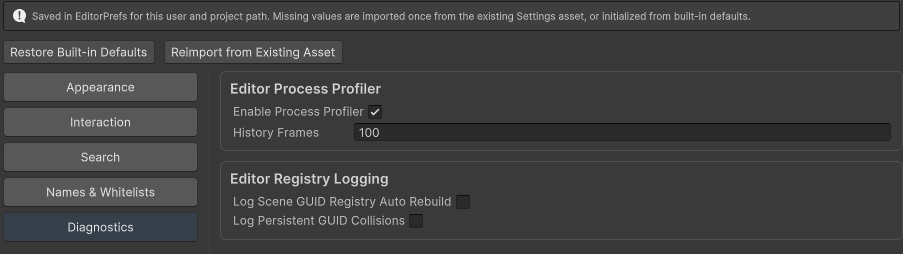
Log Persistent GUID Collisions is off by default. Enable it for persistent GUID collision warnings in Editor Play Mode.
Unity EditorPrefs stores this personal choice for the current user and project location. It survives Editor restarts without changing the shared settings asset or teammates’ preferences.
This affects only the persistent GUID collision warning in Editor Play Mode. Built players keep their existing logging behavior, and other GUID warnings remain visible. Flow Core always keeps the registered object, destroys the later duplicate hierarchy, and leaves its GUID unchanged. Disabling the warning does not resolve an unintended duplicate.
Upgrade an existing project
Each personal field without a stored value initializes once from the legacy asset, or built-in defaults if absent. Existing personal values remain unchanged.
You can use Personal without creating a shared settings asset. The asset remains the shared configuration source; legacy personal values remain for explicit reimport. Personal edits do not update them.
Preferences belong to the project location and system user. Moving or opening another checkout starts a fresh scope and initial fallback; version control does not transport EditorPrefs.
Two actions are available in Personal:
| Action | Result |
|---|---|
| Restore Built-in Defaults | Replaces your personal values with Flow Core’s built-in defaults |
| Reimport from Existing Asset | Replaces your personal values with the old personal values still stored in the settings asset; available only when that asset exists |
Both actions support Undo/Redo for personal preferences only. Reimport intentionally replaces current choices with legacy asset values.
Verify the result
- Change a display preference, restart the Editor, and confirm it remains selected.
- Check version-control changes: a personal preference edit should not modify the shared settings asset.
- Change a shared setting deliberately and confirm it appears as an asset change for team review.
- Confirm a selected name remains in its graph or component even if you remove that name from your personal suggestions.
- Reproduce a persistent GUID collision with logging enabled, then disabled; confirm the same cleanup occurs without that warning.
Common mistakes
| Symptom | Check |
|---|---|
| A teammate does not see your picker suggestions | Suggestions are personal; share the intended naming convention and serialize chosen values in project assets |
| Preferences appear reset in another checkout | Each absolute project location has its own preference scope |
| Synchronizing the old asset does not update Personal | Existing personal values take precedence; use explicit reimport if that replacement is intended |
| A runtime issue persists after changing editor appearance | Review Project Shared and the actual graph or component configuration |
| An older integration reads a different display setting | Existing FlowCoreSettings properties still read legacy asset values; they do not become a personal-preference API |