
Build a Working Result
Explore a Working Flow
Run the supplied Flow example and trace a visible event through its graph.
- Audience
- All developers
- Time
- 5 minutes
- Requires
- Flow Core installed with examples
- Modules
- Flow Core
On this page
Open a supplied scene before building anything. The goal is to see how a scene object, a Flow Graph, Triggers, Actions, and Blackboard data cooperate while the game is running.
Open the example
- Save any scene changes you want to keep.
- Search the Project window for the scene named
2.Flow Example. - Open the scene and allow Unity to finish importing or compiling any dependencies.
- Open the Game view and the Console.
- Enter Play Mode.
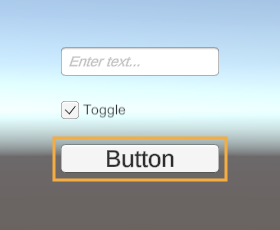
The supplied Flow example exposes an input field, a Toggle, and a Button. Use the highlighted Button for the next test operation.
Interact with the visible controls. Watch for a change in the Game view, Inspector, or Console. The exact control is less important than the relationship: a Unity event starts a chain, graph nodes route the chain, and an Action performs the result.
Find the runtime owner
- In the Hierarchy, select
Flowto inspect a process with assigned Blackboard bindings. - Locate its
FlowCoreProcesscomponent. - Note the assigned Flow Graph. Choose Open Full Configuration > Blackboards to inspect its Local Blackboard bindings.
- Open the assigned graph.
The graph asset describes behavior. FlowCoreProcess owns the runtime instance for this scene object. Two objects can use the same graph asset while keeping separate runtime state and Local Blackboard bindings.
Flow runs the graph that sends signals and has two assigned Local Blackboards: Flow and Target Blackboard. The Game view Button interaction belongs to the Button object’s process and graph.
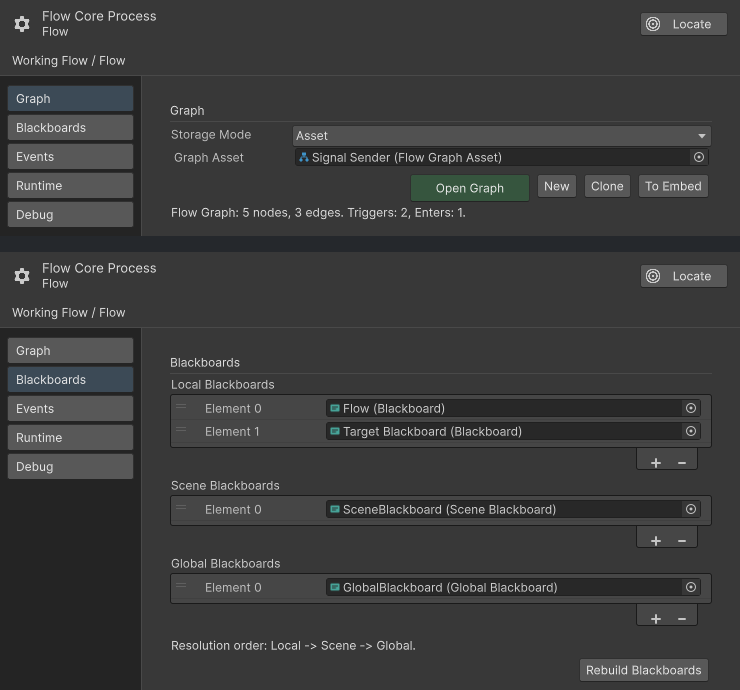
Flow’s Graph and Blackboards modules show Signal Sender and the Local bindings Flow and Target Blackboard. Select Button and its assigned graph to trace the UI event.
Trace one chain
To trace the highlighted UI Button, select the Button GameObject and open the graph assigned to its FlowCoreProcess. In the Flow Graph Editor, set Debug Context to Button. Click the Game view Button again and watch that object’s UI event chain.
Trace these stages:
- A Trigger receives the Unity or UI event.
- An output port routes the event into another node.
- A running execution chain moves through the connection.
- An Action or module node produces an observable result.
- Any bound values resolve against the selected process and its Blackboards.
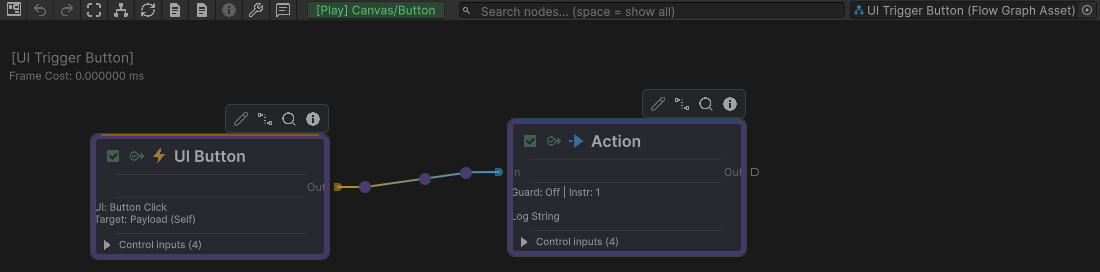
Set Debug Context to Button and trigger the Game view Button to follow its UI event chain.
Select the Action to read its Instruction in the Flow Inspector. Check whether the pane is pinned before assuming it follows the current selection. Expand the relevant entry to read its typed fields, and use Information for their meaning. These reference and presentation actions do not change which process supplies Debug Context; keep the existing Play Mode editing lock while inspecting.
Change one value
If the example exposes a safe Blackboard value, choose the process whose graph reads that value. Change it in the Inspector and trigger an event handled by that same process. Observe whether the graph structure remains unchanged while the result changes. This is the core authoring split: graphs define behavior; typed data supplies configuration and state.
Common mistakes
| Symptom | Check |
|---|---|
| The scene does nothing | Confirm Unity is in Play Mode and the selected example control is interactive. |
| The graph shows no runtime highlight | Set Debug Context to the exact GameObject whose FlowCoreProcess received the event. |
| The Inspector and graph disagree | Confirm you opened the graph assigned to the selected process. |
| A changed value has no effect | Verify the node reads that Blackboard scope, index, key, and type. |
What You Built
You built a runtime map of the supplied example: scene owner, assigned graph, start point, execution route, value source, and visible result. Use the same map whenever you open an unfamiliar Flow Core graph.
What the example demonstrated:
- A Flow Graph is authored once and instantiated by a scene process.
- Triggers and Entries start execution chains.
- Ports and connections define routes through the graph.
- Blackboard values remain separate from graph topology.
- Debug Context selects which runtime instance the editor explains.
Build the same loop yourself in Build Your First Flow.