
Flow Camera
Camera Authoring with Flow Camera
Build scene-authored Camera Shots selected by Channel, activation, and priority.
- Audience
- Gameplay and camera developers
- Time
- 15 minutes
- Requires
- A Unity Camera and a scene to frame
- Modules
- Flow Camera
On this page
Flow Camera separates shot authoring from camera selection. A Shot describes a pose and lens. A controller evaluates activated Shots in its Channel and selects the highest-priority candidate.
Create the main camera surface
- Use
GameObject > Flow Core > Main Flow Camera. - Select the controller, click
Open Full Configuration, and useMainto confirm it owns the intended Unity Camera. - Keep its Channel as
Mainfor the first setup. - Use
GameObject > Flow Core > Flow Camera Shotto create a Shot. - Select the Shot, click
Open Full Configuration, and useMainto set its Channel toMainand give it a unique Shot Name such asGameplay. - Activate the Shot and assign a Priority.
- Use
Posein the full configuration window to choose the pose mode and targets.
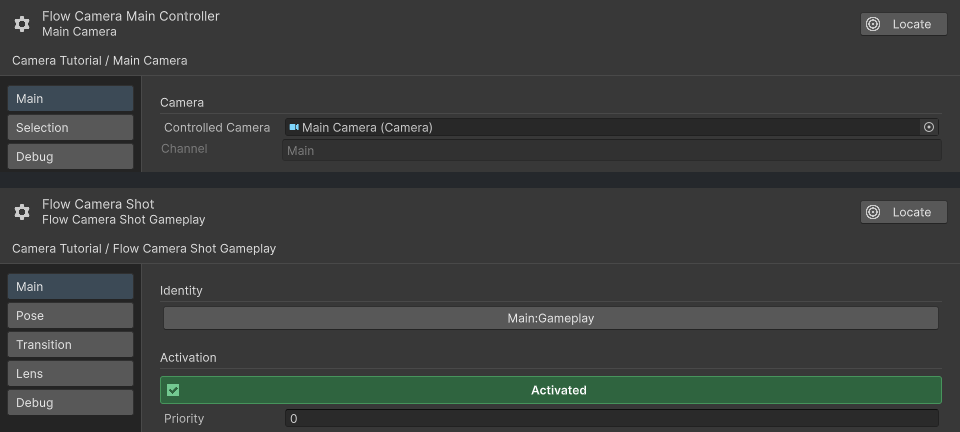
The controller and Shot have separate full configuration windows. Their Main views share Channel Main; Gameplay is activated with Priority 0.
Choose a pose mode
| Mode | Use when |
|---|---|
| Fixed | The Shot transform directly defines the camera pose. |
| Follow | The camera follows a target with an offset. |
| LookAt | The camera keeps position and aims at a target. |
| FollowAndLookAt | Movement and aim resolve from configured targets. |
Follow and LookAt damping smooth continuous tracking. The transition setting controls the blend when a destination Shot becomes selected; it is a separate behavior.
Add selection
Create a second Shot in Channel Main with a different Shot Name, pose, and priority. Higher priority wins among eligible activated Shots. If the current Shot becomes ineligible, the controller falls back to the next candidate in the same Channel.
During Play Mode, open the controller’s Open Full Configuration window and select Debug to inspect Current Shot, Channel Winner, and Blending.
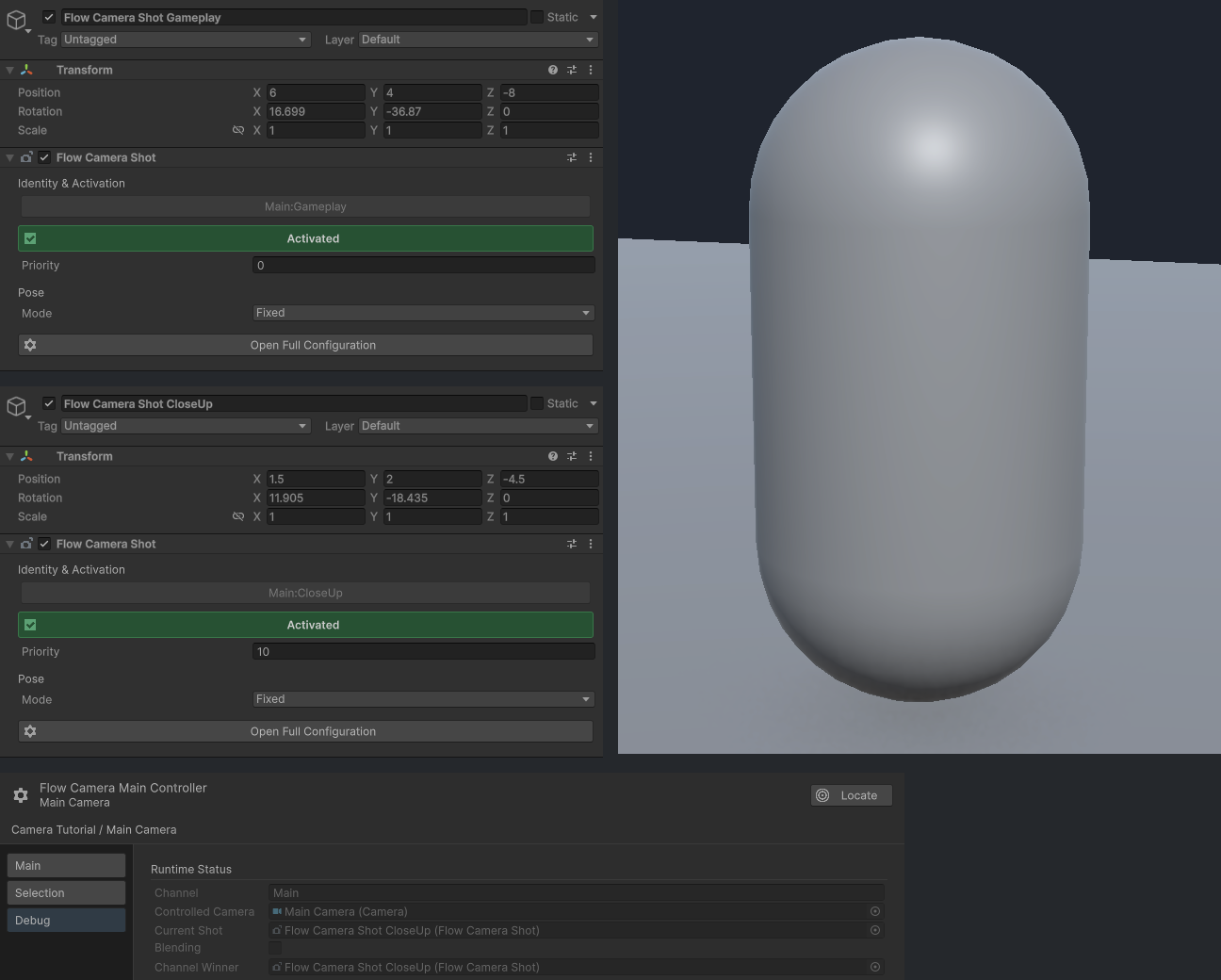
The two native Inspectors on the left show the Shot Transforms and priorities. The Game view on the right and controller Debug view below are separate captures after CloseUp wins in Channel Main; Current Shot and Channel Winner both identify CloseUp, with blending complete.
Keep identity stable
Channel and Shot Name are serialized identity. Set them before Play Mode. Use unique Shot Names within one Channel when graphs will select by name.
For picker suggestions, open Edit > Project Settings > Flow Core > Personal > Names & Whitelists and manage Camera Channels or Camera Shot Names. These lists are personal. The Channel and Shot Name selected on a controller, Shot, or Instruction remain serialized with that asset or scene. A valid runtime identity does not need to appear in a suggestion list.
Change Activated, Priority, targets, lens, or controlled rotation at runtime. Do not rely on renaming Channel or Shot Name during Play Mode to update lookup identity.
Main and output cameras
Use GameObject > Flow Core > Output Flow Camera for portraits, item previews, monitors, minimaps, or RenderTexture views. Give the output controller and its Shots a separate Channel so they run alongside Main without competing for the same candidates.
Common mistakes
- A controller and Shot use different Channels.
- Two Shots in one Channel share a lookup name.
- GameObject active state is changed when only Shot eligibility should change.
- Follow damping is tuned while expecting it to change the entry transition.
- An output Shot is placed in the main camera Channel.