
Build a Working Result
Build Your First Flow
Make a Cube grow when Play Mode starts by combining a graph, process, Blackboard, Trigger, and Action.
- Audience
- New to Flow Core
- Time
- 10–15 minutes
- Requires
- A writable Unity scene
- Modules
- Flow Core
On this page
Create a Cube that changes from scale (1, 1, 1) to (2, 2, 2) when Play Mode starts. This result exercises the complete Flow Core loop without requiring C#.
What you will build
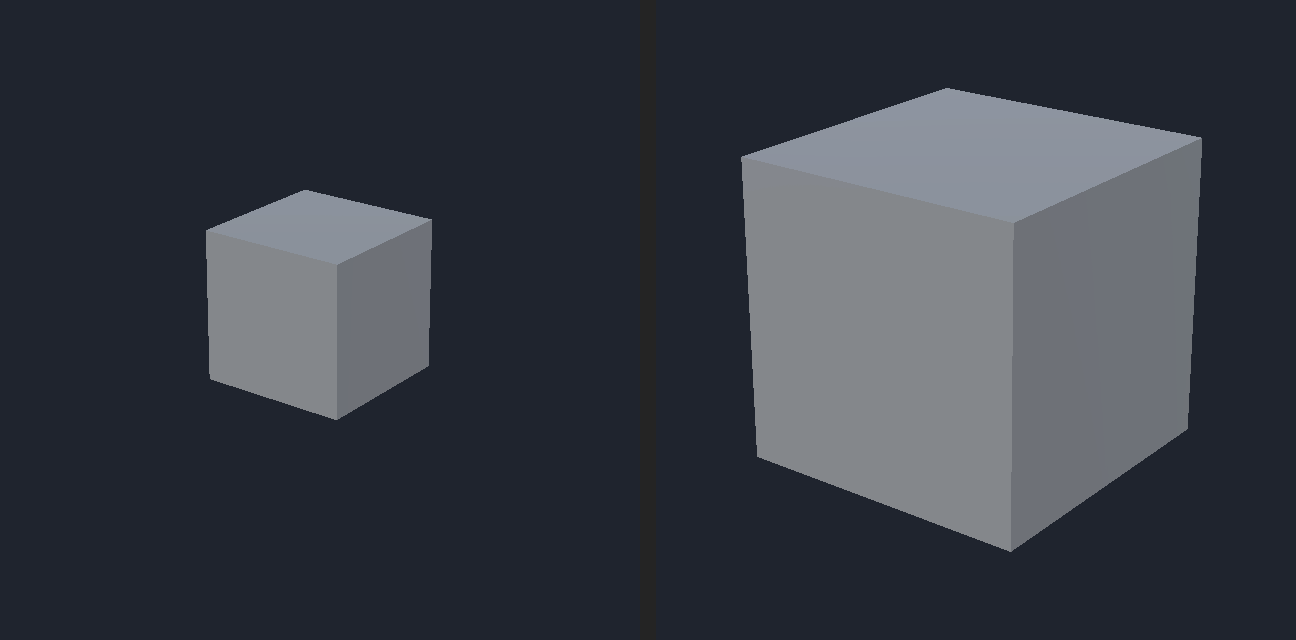
Before (left): scale (1, 1, 1). After (right): scale (2, 2, 2) in Play Mode.
Watch the complete first-graph authoring loop, then use the written steps below as the exact configuration for this tutorial.
Create the scene owner
- Create a Cube and name it
Growing Cube. - Keep its Transform scale at
(1, 1, 1). - Add a
FlowCoreProcesscomponent. - Add a
Blackboardcomponent to the same GameObject.
Keeping the process, Blackboard, and visible object together makes the first runtime ownership path easy to inspect.
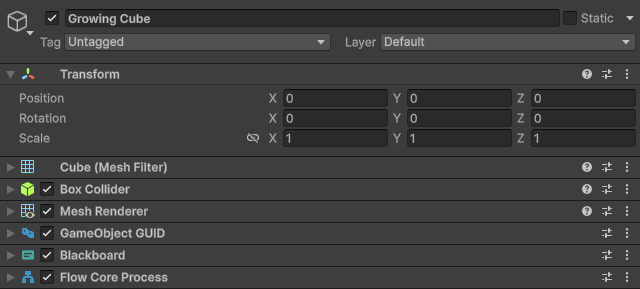
The visible object also owns its process and typed data.
Create and assign the graph
- In the Project window, use
Create > Flow Core > Flow Graph. - Name the asset
GrowCubeFlow. - Return to
Growing Cubeand assignGrowCubeFlowto itsFlowCoreProcess.
The graph stores authored nodes and connections. Assigning it to the process creates the scene relationship that will build a runtime instance.
Add the typed value
- Open the
Blackboardcomponent’s Edit view. - Add a
Vector3key namedTargetScale. - Set its value to
(2, 2, 2). - In
FlowCoreProcess, choose Open Full Configuration, open Blackboards, and add this Blackboard toLocal Blackboardsat index0.
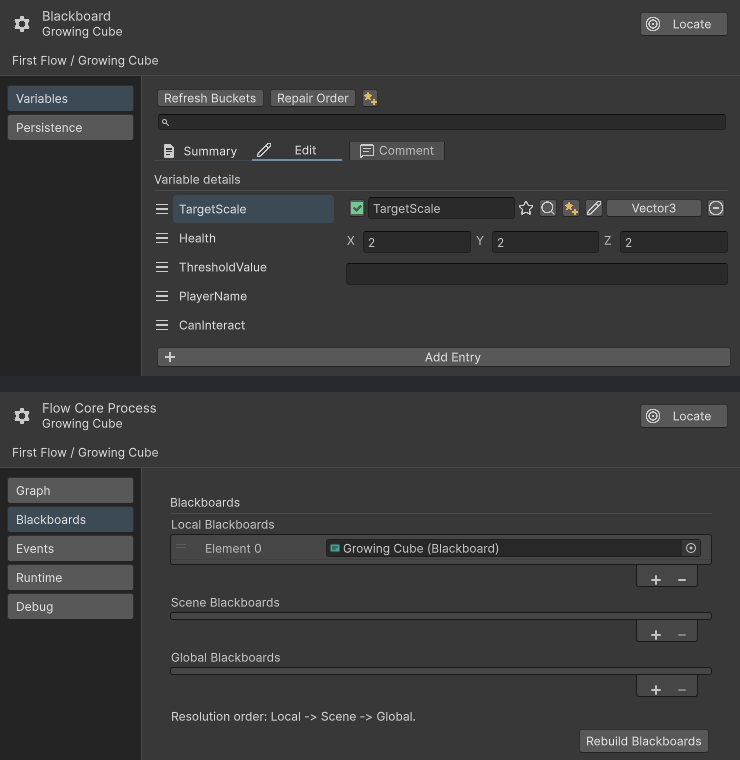
The process reads the configured Vector3 from Local Blackboard zero.
Add the Start Trigger
- Open
GrowCubeFlowin the Flow Graph Editor. - Set Debug Context to
Growing Cube. - Right-click the canvas and add a
Triggernode. - Set
BustoUnity. - Set
Unity EventtoStart.
Unity will publish this lifecycle event after the process builds its runtime in Play Mode.
Add the scaling Action
- Add an
Actionnode. - Connect
Trigger.OuttoAction.In. - Select the Action and confirm the Flow Inspector shows that Action. Expand its Instructions section and use Add Instruction to choose
Set LocalScalefromTransform/GameObject. - Expand the new Instruction. Under
Instance, setSourcetoPayloadandPayload ModetoSelf. Keep the instruction’s componentScopeset toSelf. - Under
Value, setSourcetoFlow Core Process. - In its
Blackboardsettings, selectScope: Local,Index: 0, andKey: TargetScale.
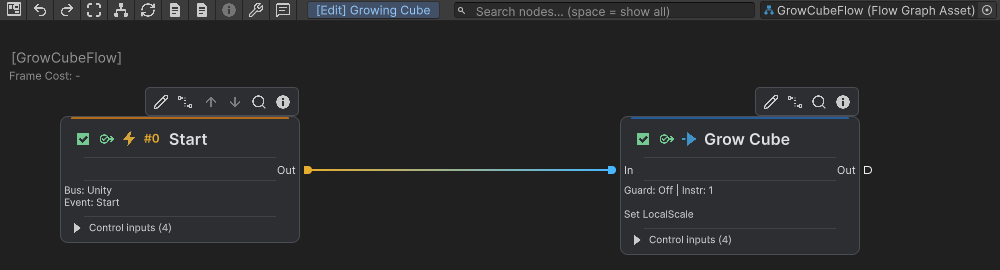
The execution connection starts the scaling Action when Play Mode begins.
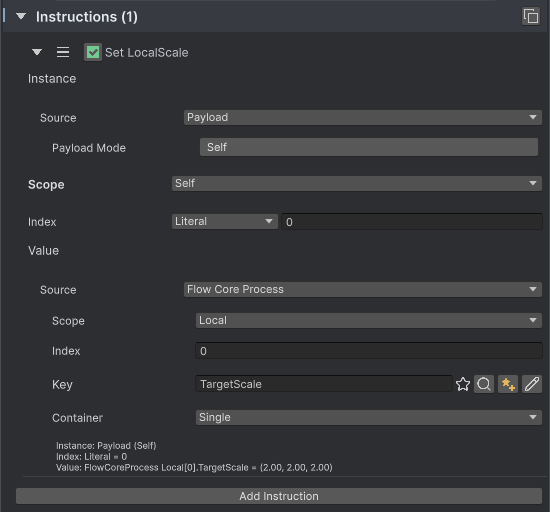
Instance uses Source Payload and Payload Mode Self. Value uses Flow Core Process, Scope Local, Index 0, and Key TargetScale.
Single Focus opens the entry you are editing while retaining the sections needed to reach it. If the pane is pinned to another node, unlock it before configuring this Action. Use the entry’s Information command for field explanations, or More > Open Editor for a dedicated Instruction window. Both edit the same Instruction; opening a window does not add another operation.
Verify the result
- Save the scene and graph.
- Select
Growing Cubeand confirm its scale is(1, 1, 1)before Play Mode. - Enter Play Mode.
- Confirm its Transform scale becomes
(2, 2, 2). - Exit Play Mode and confirm the authored Transform returns to
(1, 1, 1).
Common Mistakes
| Symptom | Check |
|---|---|
| The Cube does not change | Confirm GrowCubeFlow is assigned to FlowCoreProcess and the component is enabled. |
| The Trigger does not run | Confirm the bus is Unity and the selected event is Start. |
| The Action does not run | Confirm Trigger.Out is connected to Action.In. |
| Scale becomes the wrong value | Confirm TargetScale is a Vector3 at Local index 0. |
| The target cannot resolve | Set Instance Source to Payload and Payload Mode to Self; keep component Scope on Self. |
| Editor summaries are unresolved | Set Debug Context to Growing Cube. |
What You Built
You authored behavior in a Flow Graph, gave that graph a scene runtime through FlowCoreProcess, stored configuration in a typed Blackboard, started a chain from a Unity Trigger, and used an Action to change a Unity component.
Change TargetScale to (1, 3, 1) and run the scene again. The visible result should change without editing graph topology.