
Debug and Maintain Projects
Field Information & Flow Knowledge
Read the meaning of a selected entry and find related nodes, Instructions, Conditions, and data types without leaving Unity.
- Audience
- All developers
- Time
- 6 minutes
- Requires
- Flow Core 6.0 or later with compiler bindings available
- Modules
- Flow Core
On this page
Look up a field’s purpose while editing, then explore the related capability in Flow Knowledge. These reference windows explain types and configuration; use the graph’s Debug Context and runtime views to check the values of a running instance.
Goal
Resolve an unfamiliar field or entry, find the applicable reference, and return to authoring with a specific configuration choice to verify.
When to use this
Use Field Information when you already have a node, Instruction, or Condition in front of you. Use Flow Knowledge when you need to discover a capability, compare types, or search across the available reference entries.
Prerequisites
Allow Unity to finish compiling and attaching Flow Core’s compiler-provided bindings. The reference reads the available directory without constructing gameplay instances; no central-list rebuild is required. Open a graph containing a known entry such as Set LocalScale. No Play Mode session is required to read the reference.
Where to find it
- On a node or entry, choose Information; the control’s tooltip is Field information. In a narrow entry row, find it in More.
- Open
Tools > Flow Core > Flow Knowledgeto search the full reference. - Choose Flow Knowledge from a node or entry’s context commands, or Open in Flow Knowledge in the Field Information header, to open the corresponding reference entry directly.
Workflow
Read the selected entry
- Select the Action containing Set LocalScale and locate the Instruction in the Flow Inspector or Node Editor.
- Open its Information command and confirm the Field Information title identifies Set LocalScale.
- Read Main for the available overview and usage metadata.
- Open Fields, choose a field group when available, and expand the field you need to understand.
- Use Technical when you need to identify the reference’s type or registration metadata.
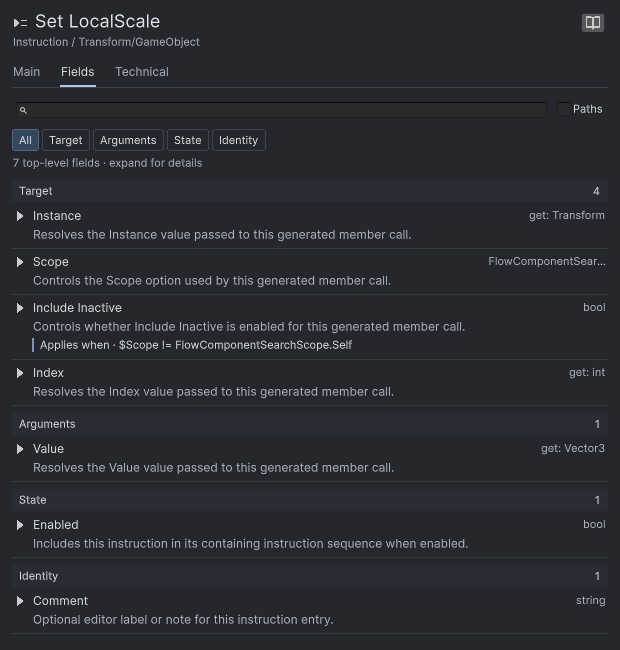
Fields explains Set LocalScale’s configuration fields.
Field Information describes the selected type, including fields that may be conditional or irrelevant to the current configuration. It does not display or edit the live values of the selected graph instance. Return to the entry editor to change those values.
Find a field inside the reference
In Fields, search by name, type, member path, description, or applicability. The search covers all field groups and retains the parent path needed to understand a nested match. Clear it to return to the previous group and reading position.
Enable Paths when repeated field names need their member path for context. Use that path to distinguish fields with similar labels; do not assume every documented field is currently visible in the authoring UI. Source, Target, container choices, and supported conditional rules determine the controls shown there.
Search the available capabilities
- Open Flow Knowledge and wait for its index to finish loading.
- Search for a capability name such as
LocalScale. - Use the type selector to limit results to Instructions, or enter
kind:instruction LocalScalein the search field. - Select the matching result and read its Main, Fields, or Technical content as available.
- Use Search syntax and examples beside the search field when you need a more precise query.
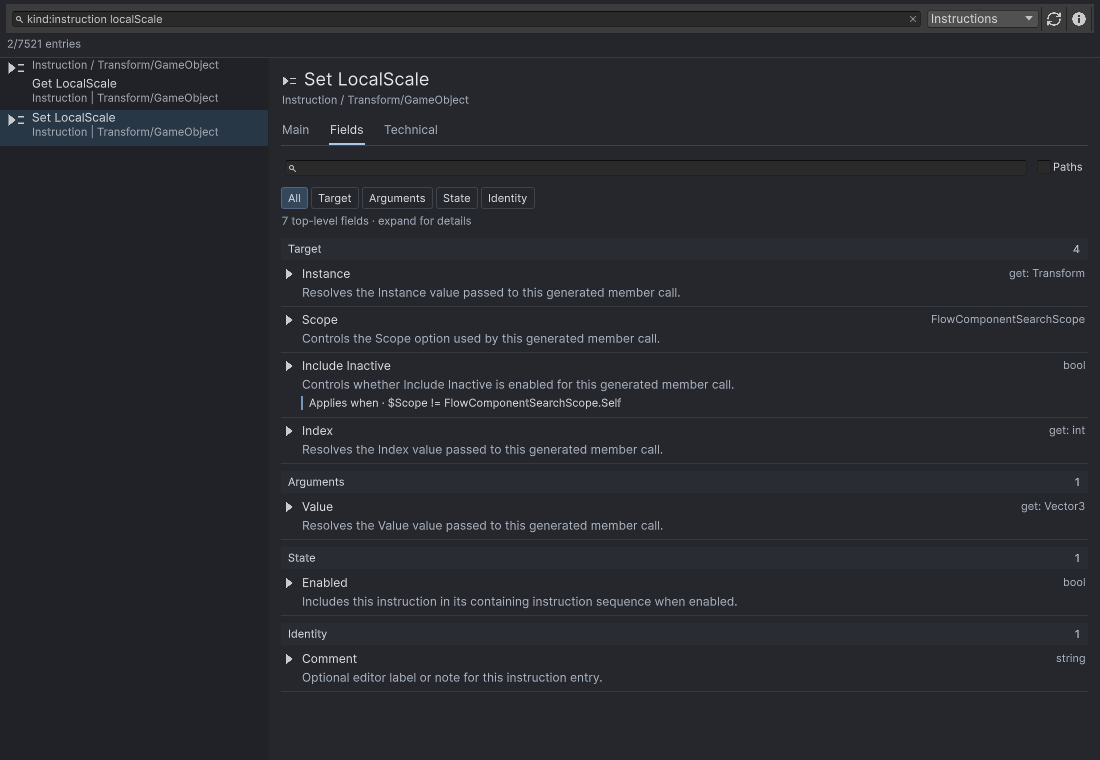
The query finds two Instructions; Set LocalScale is selected for field-level reading.
The type selector also covers Nodes, Conditions, Buckets, and Stats Description entries. Global search finds reference entries; the search inside a selected entry’s Fields tab filters that entry’s documented fields. Keep these two scopes separate when a search returns an unexpected result.
On a narrow Flow Knowledge window, use the results/details switch to return to the result list. Refresh index rebuilds the reference listing when you need to pick up changed registrations.
What changes
Searching, filtering, opening reference entries, and expanding documentation change the reference view. They do not add a node, execute an Instruction, evaluate a Condition, or change graph data. A listed capability still needs to be added and configured through its normal authoring workflow.
The available explanation depends on the metadata supplied for that type. An unavailable section or missing description is not evidence that the operation is unsupported, and a documented field is not proof that a runtime binding resolves.
Verify the result
Return to Set LocalScale, configure the intended Instance and Value routes, and run a visible check such as Build Your First Flow. Confirm the reference name matches the edited entry and that the actual runtime result matches the intended configuration.
Common mistakes
| Symptom | Check |
|---|---|
| Search returns no entries | Clear the type filter, simplify the query, and confirm the index has finished loading. |
| A field appears in the reference but not in the editor | Check the selected Source, Target, container, and conditional visibility rules. |
| A reference search changes the wrong result list | Distinguish Flow Knowledge’s global search from the selected entry’s field search. |
| Opening a reference does not add the operation | Use the node, Instruction, or Condition picker to author an instance. |
| The documentation does not explain the current live value | Inspect the intended process, Debug Context, and Blackboard at runtime. |