
Flow Stats
Explore Flow Stats in Five Minutes
Run the supplied Stats example and observe Resources, formulas, Effects, events, and snapshots.
- Audience
- New Flow Stats users
- Time
- 5 minutes
- Requires
- Flow Core examples imported into the project
- Modules
- Flow Stats
On this page
Goal
Use the supplied 7. Stats example to see the complete Flow Stats loop before authoring your own assets.
Prerequisites
- Import the Flow Core examples.
- Use a test copy of the example scene if you plan to save changes.
- No Flow Character,
FlowCoreProcess, or Blackboard setup is required.
What You Will Build
You will run a standalone Stats owner and verify five behaviors: bounded Health changes, calculated Attack Power, stacked Regeneration, event feedback, and snapshot restore.
Steps
1. Open the example
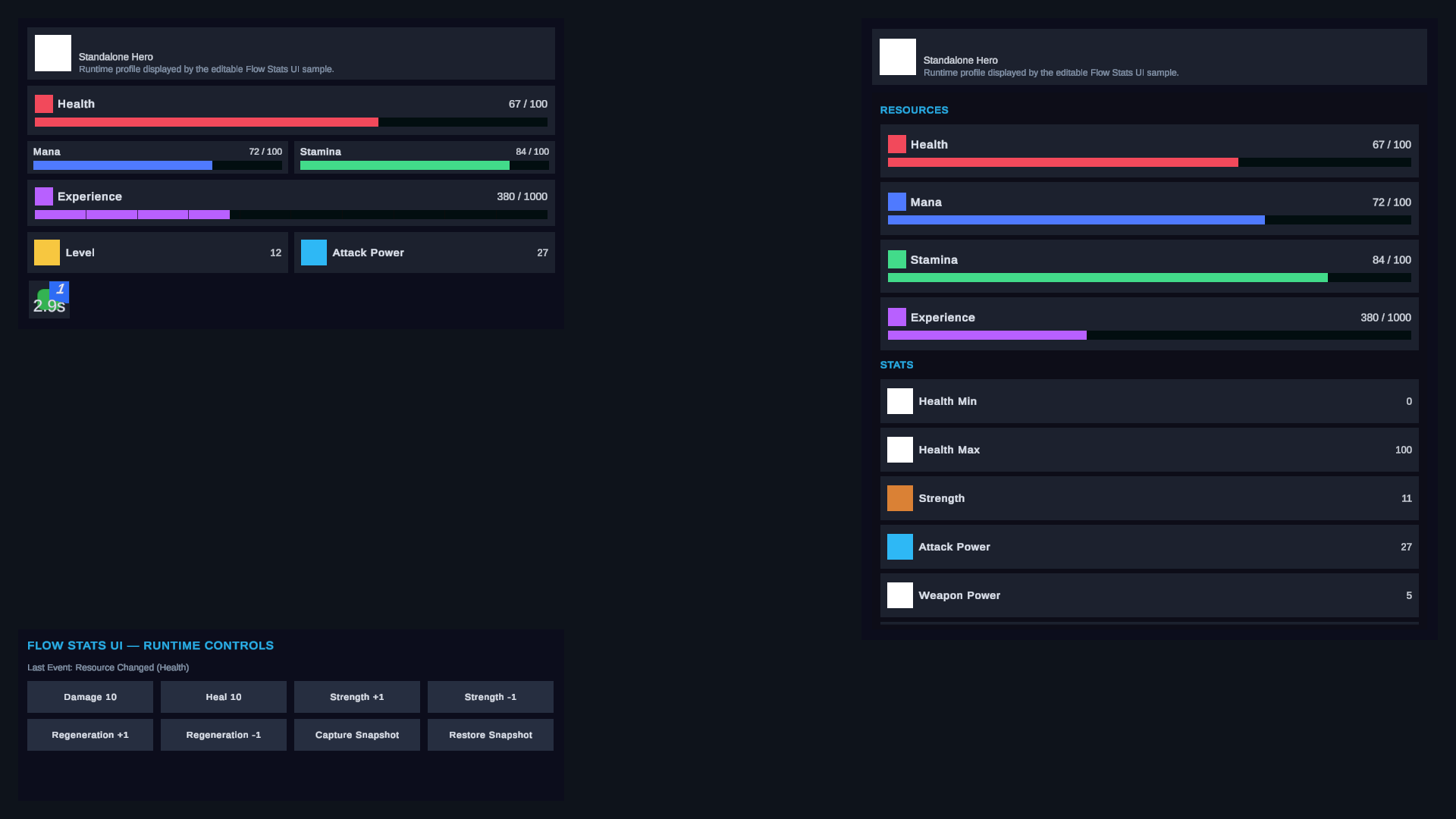
Open the supplied 7. Stats scene and select the object with FlowStatsExampleController. Before entering Play Mode, use the Game view as a layout reference for the available controls.
The scene starts with a configured Profile, Resources, Stats, a Regeneration Effect, and controls that call the runtime API directly.

Enter Play Mode and wait until the latest-event line reports that Flow Stats is ready before using the controls.
2. Change Health
Use Damage 10 and Heal 10. Health moves down and up while staying inside its cached bounds. The latest event display identifies the observed runtime change.
3. Recalculate Attack Power
The example starts Strength at 10, Weapon Power at 5, and evaluates:
Attack Power = Strength × 2 + Weapon Power
             = 10 × 2 + 5
             = 25
Use Strength +1. Attack Power changes from 25 to 27, showing that a dependent Stat recalculates when its source changes.
4. Add and remove Regeneration stacks
Use the Regeneration controls to add a stack. Each active aggregate stack restores one Health per second in this example. Add another stack to increase the next tick, then remove one to reduce it.
5. Capture and restore a snapshot
Choose Capture Snapshot, then change Health, Strength, or Regeneration. Choose Restore Snapshot. The owner returns to the captured runtime state, including values and active Effects whose definitions have Persist enabled.
Verify the Result
Common Mistakes
| Symptom | Check |
|---|---|
| The controls do nothing | Confirm the Editor is in Play Mode and the example controller references its FlowStats owner. |
| Attack Power does not change | Use the Strength controls, not the Health controls. |
| Regeneration appears delayed | Its periodic contribution waits for the configured interval. |
| Restore appears unchanged | Capture first, then make a visible change before restoring. |
| Your own scene behaves differently | Compare its Profile, definitions, and instance overrides with the supplied example. |
What You Built
You exercised the module’s main runtime behaviors without adding graph or Blackboard dependencies. The example is now a known-good reference for your first custom Profile.
Next Steps
Create a small Profile with one Health Resource, then prove that two runtime owners can share its authoring data without sharing live values.